
Learn how to transform Neovim into a powerful Standard C IDE using clangd, LSP, and nvim-cmp for a productive development workflow.
Why?
I you have read my articles Configuring Neovim as Python IDE and Configuring Neovim as Rust IDE you already know that Neovim is one of my favorite editor and IDE. Using Neovim makes me feel more focused and productive.
For certain reasons, I’ve had to dust off Standard C, and, for me, Neovim is the best tool to do it. So, I converted Neovim into my Standard C IDE.
Converting Neovim into a Standard C IDE environment requires installing and configuring several plugins to replicate the expected features like code completion, diagnostics, project management, and debugging, but it’s very fast and straightforward.
Neovim base configuration
As always, I’ll start from my base configuration. This is my universal configuration that I use across all my machines, regardless of the task.
~/.config/nvim/init.vim:
1
2
3
4
5
6
7
8
9
10
11
12
13
14
15
16
17
18
19
20
21
22
23
24
25
26
27
28
29
30
31
32
33
34
35
36
37
38
39
40
41
42
43
44
45
46
47
48
49
50
51
52
53
54
55
56
57
58
59
60
" ==============================================================================
" CORE FUNCTIONALITY AND FILETYPE
" ==============================================================================
syntax on                               " Enable syntax highlighting
filetype plugin indent on               " Enable filetype detection, plugins, and smart indentation
set encoding=utf-8                      " Set file and terminal encoding to UTF-8

" ==============================================================================
" INDENTATION AND TABS (Using 4-space soft tabs)
" ==============================================================================
set autoindent                          " Copy indentation from the previous line
set smartindent                         " Enable smarter automatic indentation
set expandtab                           " Use spaces instead of actual tabs
set tabstop=4                           " A Tab character is rendered as 4 spaces wide
set shiftwidth=4                        " Auto-indent commands (e.g., >>) use 4 spaces
set softtabstop=4                       " Tab/Backtab keys use 4 spaces when inserting

" Forzar 4 espacios específicamente en C/C++ para evitar overrides
augroup FileTypeSettings
    autocmd!
    autocmd FileType c,cpp setlocal tabstop=4 shiftwidth=4 softtabstop=4
augroup END

" ==============================================================================
" UI AND APPEARANCE
" ==============================================================================
set number                              " Show absolute line number
set showmatch                           " Briefly show the matching bracket/parenthesis
set wildmenu                            " Enhanced command-line completion menu
set mouse=a                             " Enable mouse support
set updatetime=250                      " Sets the delay (ms) for showing diagnostics and tooltips (important for LSP)

" ==============================================================================
" SEARCH
" ==============================================================================
set path+=** " Allow searching for files recursively (e.g., :find filename)
set incsearch                           " Show results as you type the search pattern (incremental search)
set hlsearch                            " Highlight all matches of the last search pattern
set ignorecase                          " Ignore case when searching
set smartcase                           " Override ignorecase if the search pattern contains uppercase letters

" ==============================================================================
" BEHAVIOR AND SYSTEM INTEGRATION
" ==============================================================================
set backspace=indent,eol,start          " Ensures backspace works as expected
set clipboard=unnamedplus               " Integrate with system clipboard for yank/put (requires external tool like xclip/wl-copy)
set noswapfile                          " Disable swap files to prevent clutter
set undofile                            " Enable persistent undo history

" Specify a directory for undo files and create it if it doesn't exist
let s:undo_dir = expand('~/.config/nvim/undodir')
if !isdirectory(s:undo_dir)
    call mkdir(s:undo_dir, "p")
endif
let &undodir = s:undo_dir

" ==============================================================================
" LEADER KEY
" ==============================================================================
let mapleader = " "                     " Sets the Leader key to <Space> (used for custom keybinds like <leader>ca)
Language Server Protocol (LSP): clangd
clangd is the Language Server for C/C++. It uses the clang compiler’s internal logic to understand C++ code and provide that information to Neovim.
Install clangd
sudo apt update && sudo apt install clangd
Configure clangd and keymaps
We will set up clangd and define some standard keymaps for LSP functions. Place this directly in your init.vim file within a lua block:
1
2
3
4
5
6
7
8
9
10
11
12
13
14
15
16
17
18
19
20
21
22
23
24
25
26
27
28
29
30
31
32
33
34
35
36
37
38
39
40
41
42
43
44
45
46
47
48
49
lua << EOF
-- Function to set up basic keymaps when an LSP server attaches
local on_attach = function(client, bufnr)
  -- The following keymaps are examples. Feel free to adjust.
  local buf_set_keymap = vim.api.nvim_buf_set_keymap
  local opts = { noremap=true, silent=true }

  -- Go to Definition
  buf_set_keymap(bufnr, 'n', 'gd', '<cmd>lua vim.lsp.buf.definition()<CR>', opts)
  -- Show Hover Documentation
  buf_set_keymap(bufnr, 'n', 'K', '<cmd>lua vim.lsp.buf.hover()<CR>', opts)
  -- List References
  buf_set_keymap(bufnr, 'n', 'gr', '<cmd>lua vim.lsp.buf.references()<CR>', opts)
  -- Code Actions (quick fixes, refactoring)
  buf_set_keymap(bufnr, 'n', '<leader>ca', '<cmd>lua vim.lsp.buf.code_action()<CR>', opts)
  -- Rename symbol
  buf_set_keymap(bufnr, 'n', '<leader>rn', '<cmd>lua vim.lsp.buf.rename()<CR>', opts)
  -- Format code (uses server formatting, which clangd supports)
  buf_set_keymap(bufnr, 'n', '<leader>cf', '<cmd>lua vim.lsp.buf.format()<CR>', opts)

  -- Format on save (optional, but convenient)
  if client.resolved_capabilities.document_formatting then
    vim.cmd('autocmd BufWritePre <buffer> lua vim.lsp.buf.format({async = false})')
  end
end

-- Get the LSP configuration utility
local lspconfig = require('lspconfig')

-- Setup clangd
lspconfig.clangd.setup {
    on_attach = on_attach,
    -- Root directory finder: searches for project markers (like compile_commands.json, .git)
    root_dir = lspconfig.util.root_pattern("compile_commands.json", ".git", "Makefile"),
    -- You can add extra clangd arguments here if needed
    -- cmd = { "clangd", "--background-index" },
}

-- Enable diagnostics (errors and warnings)
vim.diagnostic.config({
  virtual_text = true,
  signs = true,
  update_in_insert = false,
  float = {
    source = "always",
    border = "rounded",
  },
})
EOF
Neovim plugin manager
As plugin manager, my choice is vim-plug, and its installation it’s very straightforward:
Unix/linux:
sh -c 'curl -fLo "${XDG_DATA_HOME:-$HOME/.local/share}"/nvim/site/autoload/plug.vim --create-dirs https://raw.githubusercontent.com/junegunn/vim-plug/master/plug.vim'
Plugins
I install three plugins:
nvim-lspconfig Configs for the Nvim LSP client.
nvim-cmp A completion engine plugin.
Vim Better Whitespace This plugin highlights all trailing whitespaces. It’s completely optional and can be replaced by the option “lines” in the
vim.initfile, but I like it.
We need to create the directory where we will install the plugins. I install my plugins in ~/.config/nvim/plugins, so:
mkdir ~/.config/nvim/plugins
nvim-lspconfig
To install it, we add the plugin to our init.vim file, into the call plug#begin('~/.config/nvim/plugins') section, below all the lines:
1
2
3
4
5
6
call plug#begin('~/.config/nvim/plugins')
...

Plug 'neovim/nvim-lspconfig'

call plug#end()
nvim-cmp
A completion engine plugin for neovim written in Lua. Completion sources are installed from external repositories and “sourced”. To install it we need to add the following to our init.vim file:
1
2
3
4
5
6
7
8
9
10
11
12
13
14
15
16
17
18
19
20
21
22
23
24
25
26
27
28
29
30
31
32
33
34
35
36
37
38
39
40
41
42
43
44
45
46
47
48
49
50
51
52
53
54
55
56
57
58
59
60
61
62
63
64
65
66
67
68
69
70
71
72
73
74
75
76
77
78
79
80
81
82
83
call plug#begin('~/.config/nvim/plugins')
Plug 'hrsh7th/cmp-nvim-lsp'
Plug 'hrsh7th/cmp-buffer'
Plug 'hrsh7th/cmp-path'
Plug 'hrsh7th/cmp-cmdline'
Plug 'hrsh7th/nvim-cmp'

" For vsnip users.
Plug 'hrsh7th/cmp-vsnip'
Plug 'hrsh7th/vim-vsnip'

call plug#end()

lua <<EOF
  -- Set up nvim-cmp.
  local cmp = require'cmp'

  cmp.setup({
    snippet = {
      -- REQUIRED - you must specify a snippet engine
      expand = function(args)
        vim.fn["vsnip#anonymous"](args.body) -- For `vsnip` users.
        -- require('luasnip').lsp_expand(args.body) -- For `luasnip` users.
        -- require('snippy').expand_snippet(args.body) -- For `snippy` users.
        -- vim.fn["UltiSnips#Anon"](args.body) -- For `ultisnips` users.
      end,
    },
    window = {
      -- completion = cmp.config.window.bordered(),
      -- documentation = cmp.config.window.bordered(),
    },
    mapping = cmp.mapping.preset.insert({
      ['<C-b>'] = cmp.mapping.scroll_docs(-4),
      ['<C-f>'] = cmp.mapping.scroll_docs(4),
      ['<C-Space>'] = cmp.mapping.complete(),
      ['<C-e>'] = cmp.mapping.abort(),
      ['<CR>'] = cmp.mapping.confirm({ select = true }), -- Accept currently selected item. Set `select` to `false` to only confirm explicitly selected items.
    }),
    sources = cmp.config.sources({
      { name = 'nvim_lsp' },
      { name = 'vsnip' }, -- For vsnip users.
      -- { name = 'luasnip' }, -- For luasnip users.
      -- { name = 'ultisnips' }, -- For ultisnips users.
      -- { name = 'snippy' }, -- For snippy users.
    }, {
      { name = 'buffer' },
    })
  })

  -- Set configuration for specific filetype.
  cmp.setup.filetype('gitcommit', {
    sources = cmp.config.sources({
      { name = 'git' }, -- You can specify the `git` source if [you have installed it](https://github.com/petertriho/cmp-git).
    }, {
      { name = 'buffer' },
    })
  })

  -- Use buffer source for `/` and `?` (if you enabled `native_menu`, this won't work anymore).
  cmp.setup.cmdline({ '/', '?' }, {
    mapping = cmp.mapping.preset.cmdline(),
    sources = {
      { name = 'buffer' }
    }
  })

  -- Use cmdline & path source for ':' (if you enabled `native_menu`, this won't work anymore).
  cmp.setup.cmdline(':', {
    mapping = cmp.mapping.preset.cmdline(),
    sources = cmp.config.sources({
      { name = 'path' }
    }, {
      { name = 'cmdline' }
    })
  })

  -- Set up lspconfig.
  local capabilities = require('cmp_nvim_lsp').default_capabilities()
  -- CLANGD
  require('lspconfig')['clangd'].setup {
    capabilities = capabilities
  }
EOF
Replace the plugins directory in the first line with your own.
Vim Better Whitespace
This plugin causes all trailing whitespace characters to be highlighted. Whitespace for the current line will not be highlighted while in insert mode. It is possible to disable current line highlighting while in other modes as well. A helper function :StripWhitespace is also provided to make whitespace cleaning painless.
This plugin is optional, and can be substituded by the “lines” option in the vim.init file. But, I like it, and the :StripWhitespace function is very useful.
To install it we add the plugin to our init.vim file, into the call plug#begin('~/.config/nvim/plugins') section, below all the lines:
1
2
3
4
5
6
call plug#begin('~/.config/nvim/plugins')
...

Plug 'ntpeters/vim-better-whitespace'

call plug#end()
Installing the plugins
To install the plugins we open nvim and run:
:PlugInstall
Screenshots
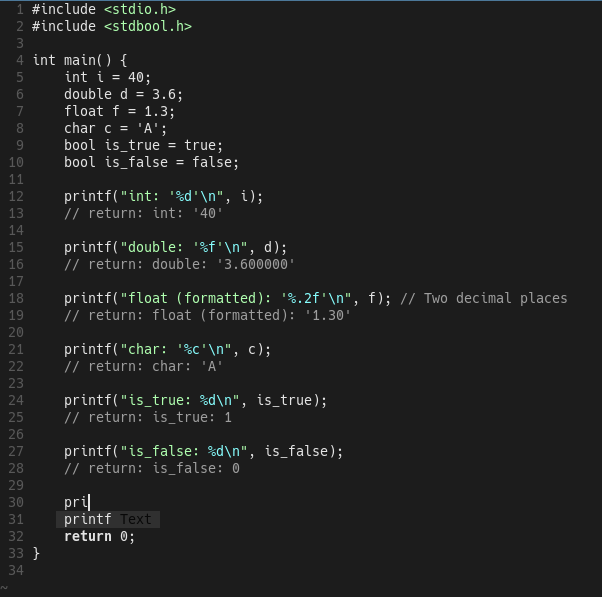 Example of autocompletion
 Example of linting errors
Thanks for reading! :)