
Configure your Neovim environment to leverage the power of Google’s Gemini models. This includes obtaining an API key, setting up the necessary plugin architecture using Lazy.nvim, and configuring the tool to assist with code generation, explanations, and refactoring directly within Neovim.
Why?
The primary advantage of bringing Gemini into Neovim is a massive increase in productivity. Instead of toggling between your browser and your terminal, you can query the AI for documentation, logic fixes, or boilerplate code without ever lifting your hands from the home row. By integrating Gemini, you gain a pair programmer that understands your current buffer’s context, helping you solve complex problems faster and reducing the cognitive load of syntax memorization.
Obtain your Gemini API Key
Before configuring the plugin, you need an API key from Google.
- Go to the Google AI Studio.
- Create a new project
- Create a new API key and add it to the project.
- Execute
export GEMINI_API_KEY="your_api_key_here" - Add the line
export GEMINI_API_KEY="your_api_key_here"to .profile
Install (and configure) gemini.nvim with Lazy.nvim
We will use gemini.nvim and we will map gemini.nvim to keys that feel natural. The key mappings will only exist if the plugin is installed and loaded.
Add the following lua block to your ~/.config/nvim/lua/plugins/gemini.lua file:
1
2
3
4
5
6
7
8
9
10
11
12
13
14
15
16
17
18
19
20
21
22
23
24
25
26
27
28
29
30
31
32
33
34
return {
  'kiddos/gemini.nvim',

  opts = {
    model_config = {
      model_id = "gemini-1.5-flash",
      temperature = 0.7, -- Balance between precision and creativity
    },

    -- Disable to avoid annoying ghost text and to save API quota.
    hints = { enabled = false },
    completion = { enabled = false },

    -- Configure behavior
    instruction = {
      enabled = true,
      data = "You are a senior expert programmer in Python, Rust, .NET, and Standard C. Your responses must be brief, concise, and focused on technical excellence.",
    },

    chat_config = {
      enabled = true,
    },
  },

  config = function(_, opts)
    require("gemini").setup(opts)

    -- Keybindings
    vim.keymap.set("n", "<leader>gc", "<cmd>GeminiChat<cr>", { desc = "Gemini Chat" })
    vim.keymap.set("n", "<leader>gr", "<cmd>GeminiReview<cr>", { desc = "Gemini Code Review" })
    vim.keymap.set("v", "<leader>ge", "<cmd>GeminiExplain<cr>", { desc = "Gemini Explain Selection" })
    vim.keymap.set("v", "<leader>go", "<cmd>GeminiOptimize<cr>", { desc = "Gemini Optimize Selection" })
  end
}
You can view more configuration options in gemini.nvim’s README file
Install gemini.nvim
Open Neovim and run :Lazy, then press I
Restart Neovim
Restart Neovim to start using the commands.
Demos
Check out this demos from gemini.nvim’s README file
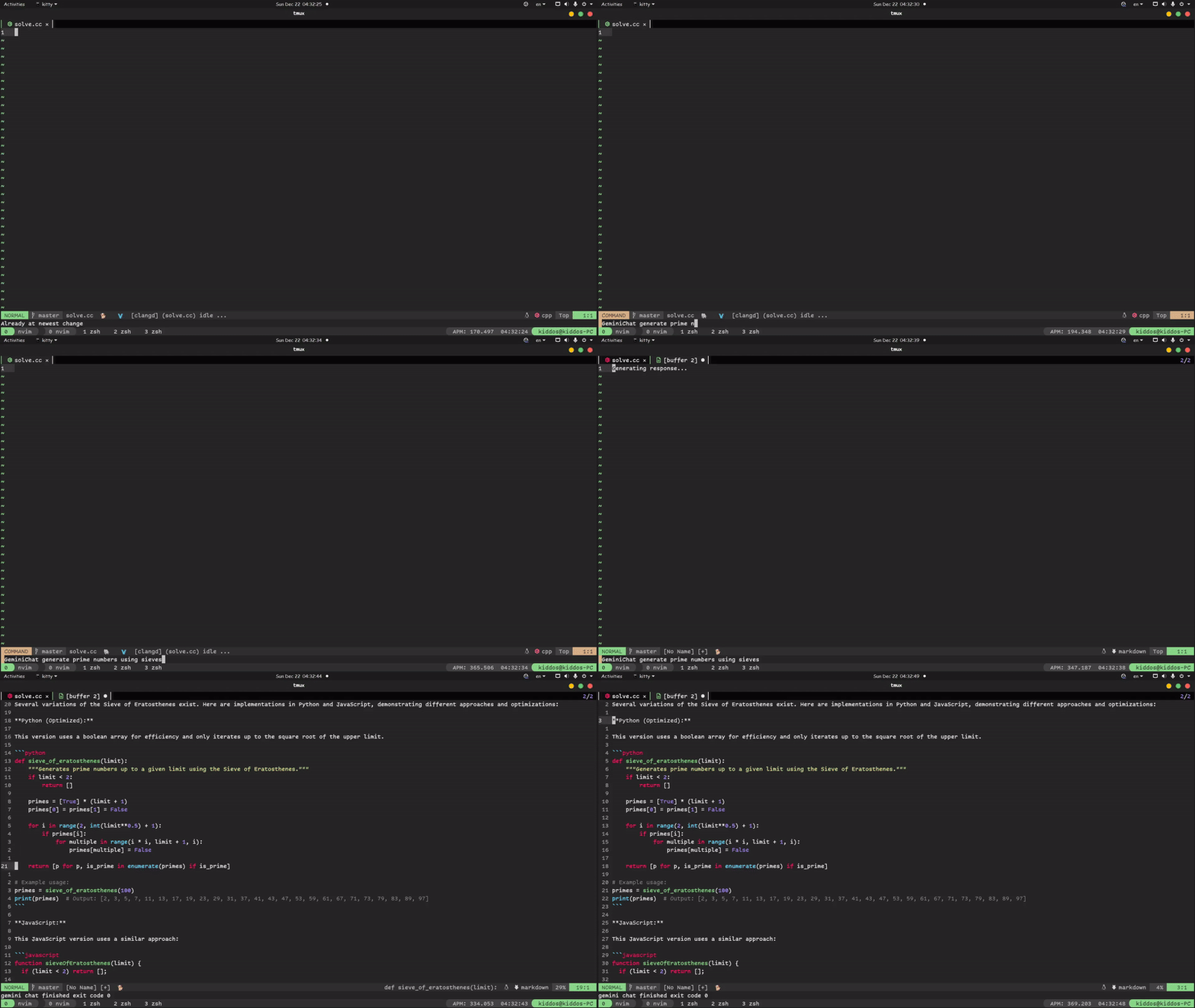 GeminiChat command
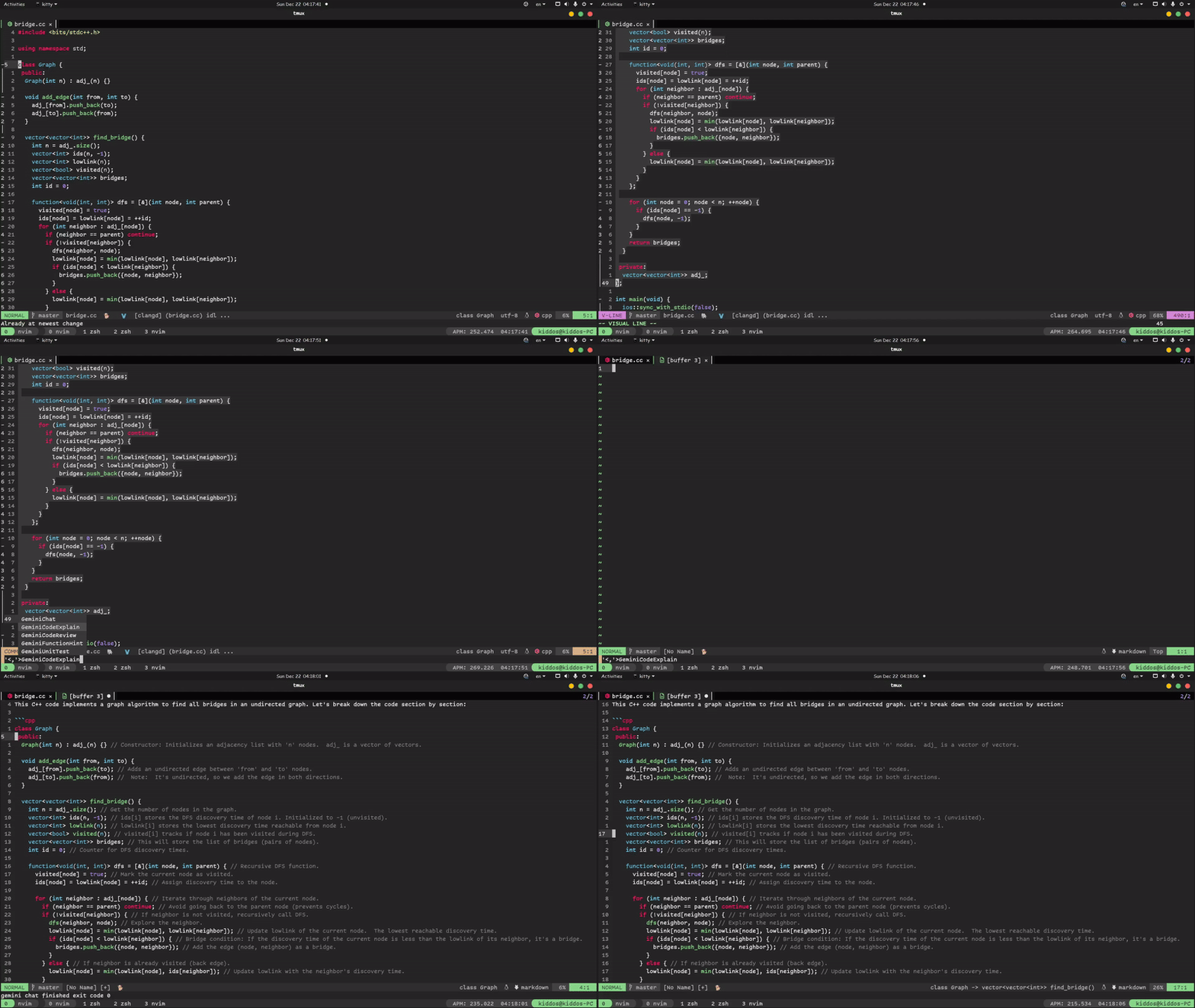 GeminiExplain command
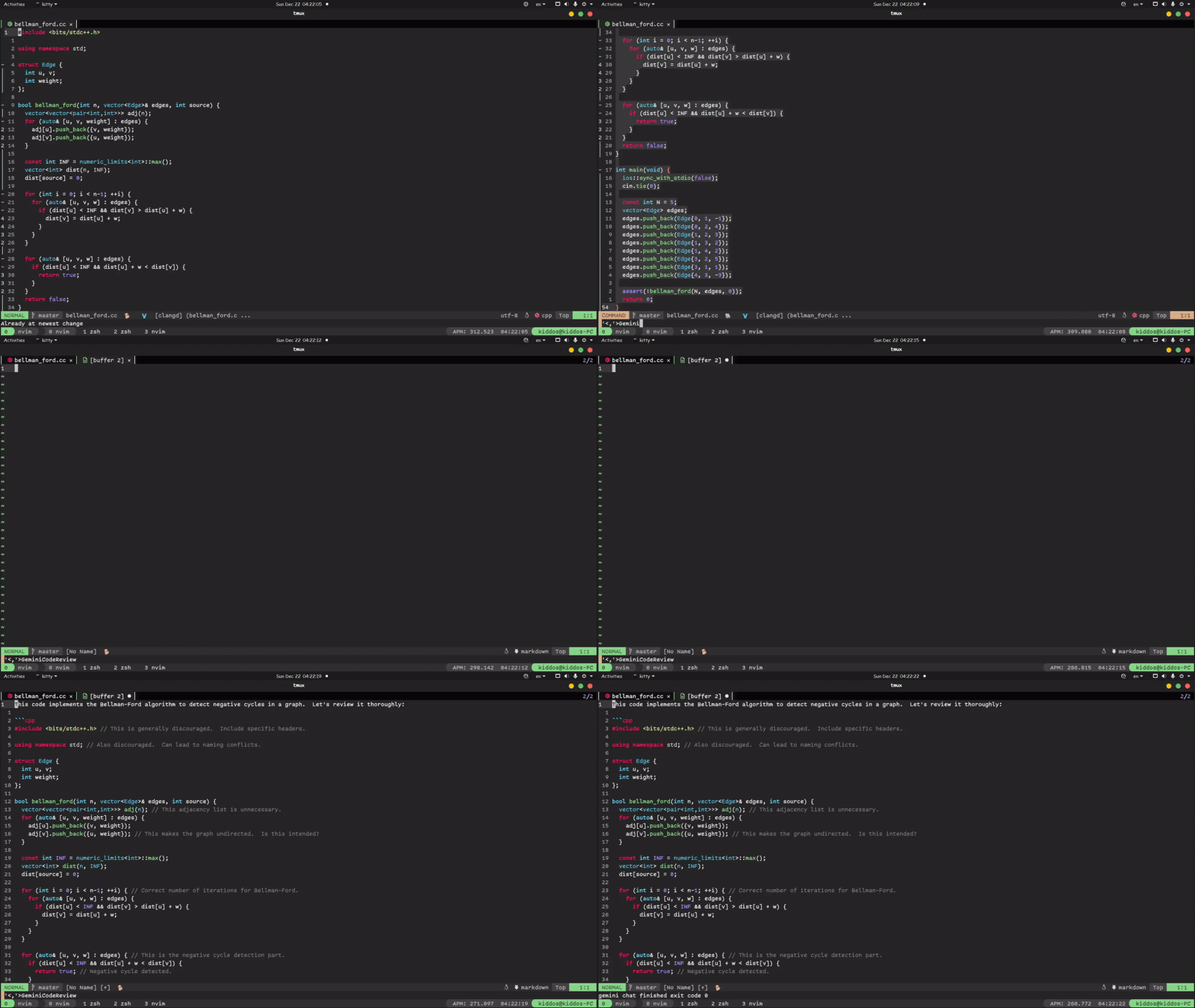 GeminiCodeReview command
Thanks for reading! :)